Media Magic Support
Docsยป automagic:vat:mtd-submit

Submitting a VAT Return

Prepare and save a VAT return as normal, see Creating a new VAT Return for the current quarter

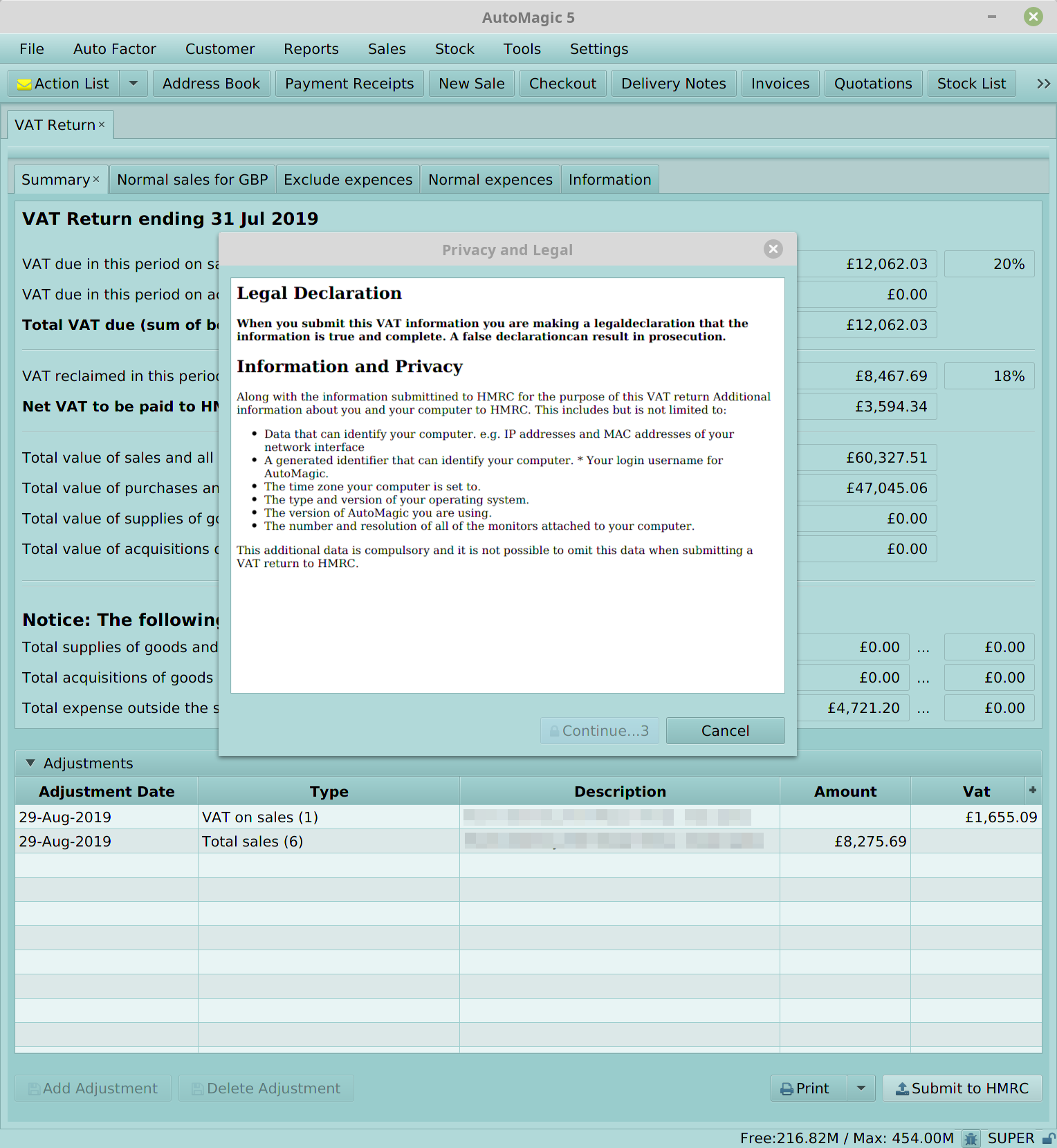
Once the vat return has been saved, click on the Submit to HMRC button  Submit VAT Return Read the legal declaration and hold the mouse cursor over the Continue button for 3 seconds to activate the button. Click the Continue button to submit the VAT return
Viewing VAT Obligations

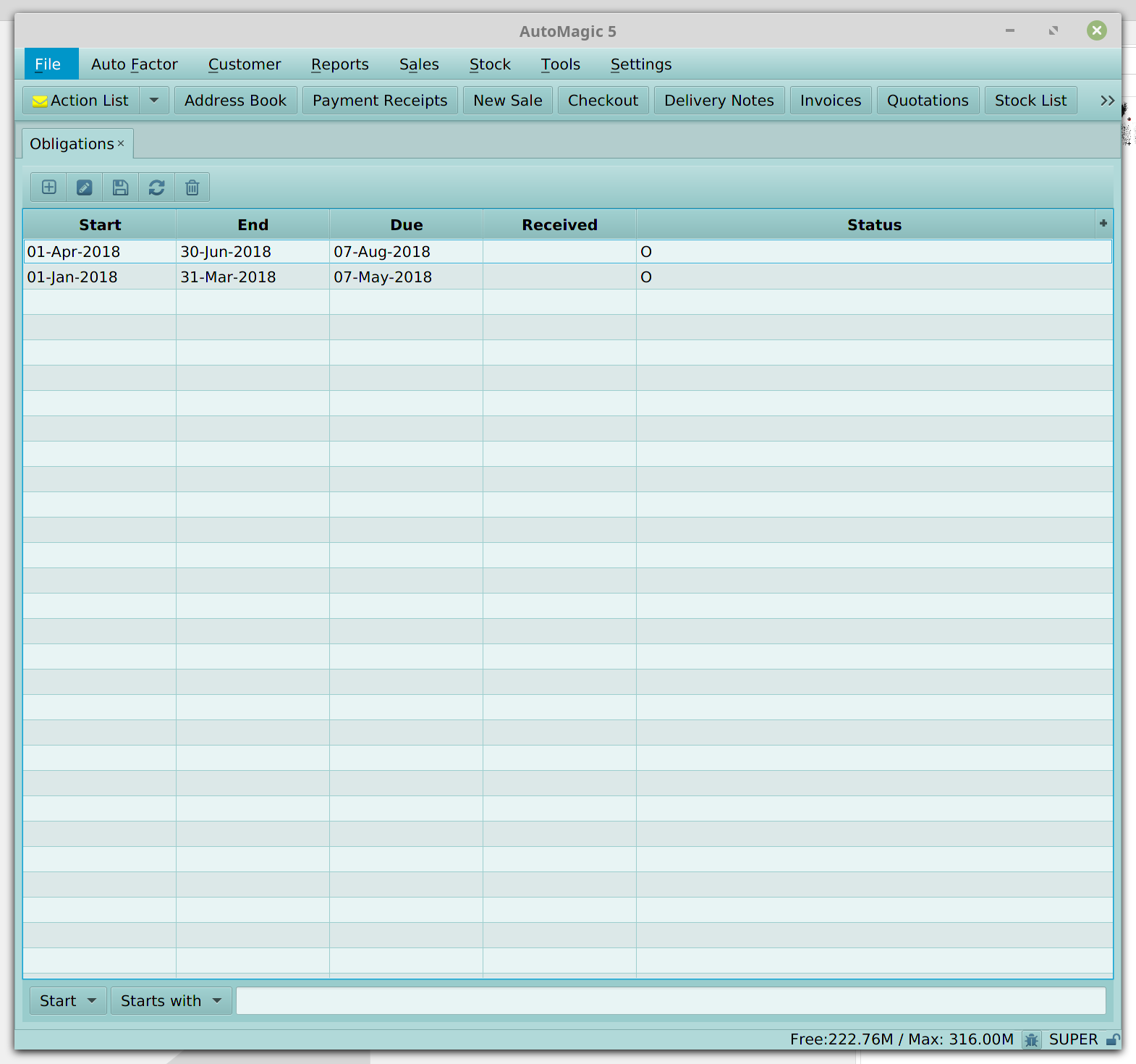
From the main menu select Tools, Accounts, HMRC, Obligations  Obligations The obligations table show upcoming VAT periods for your business and the submission deadlines for the upcoming VAT periods.
Previous Next

Media Magic Support

Table of Contents

** Installation **

  • Install on Windows
  • Install on other platforms
  • Remote Access

** AutoMagic **

  • Desktop application
  • VAT Returns
  • Customer Accounts
  • Sales
  • Order fulfilment
  • Stock
  • Expense Ledgers
  • Managing Reports

** Android Sales Tablets**

  • Installing a CA Certificate on Android
  • Setting up the android software
  • Software updates

** Web services **

  • Installing a CA Certificate
  • Trouble Shooting
  • Installing and Getting started
    • Provisioning Zebera TC5x devices
    • Setting an authentication token
  • Proof of delivery and signiture capture
    • For deliveries.
    • For Invoices, delivery notes and quotations.
    • For Paid Outs

** Warehouse Management System (WMS) **

  • WMS Functions
    • Info
    • Storage
    • Replenish
    • Picking
    • Check picking
    • New stock
    • Stock Take
  • Master data
  • Setup
    • Location Layout
  • Terms and definitions

** Policy **

  • Privacy Policy