Rebates
What are rebates and how do they work?
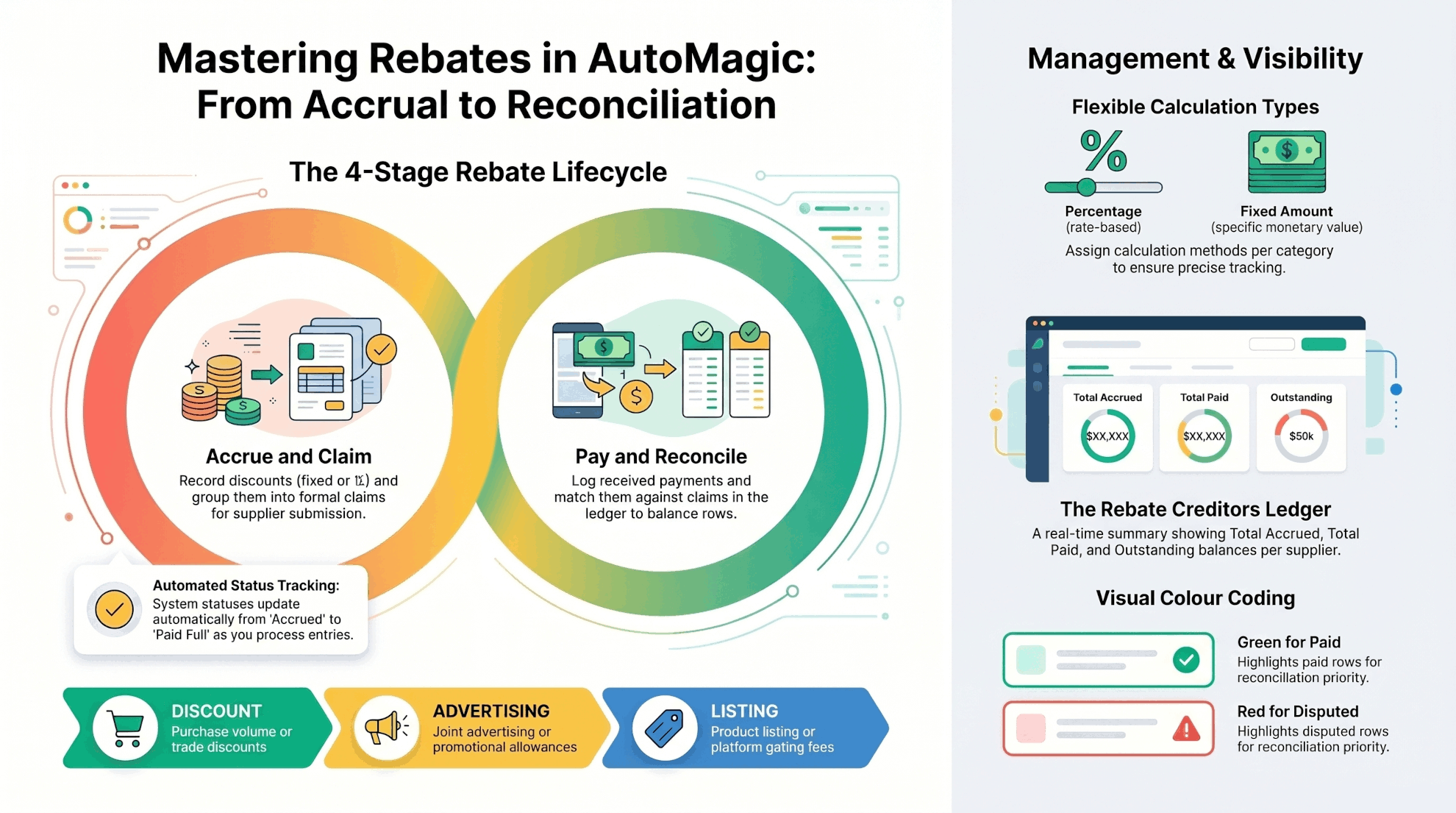
Rebates in AutoMagic track money that suppliers owe you — whether as percentage-based discounts, fixed amounts, or allowances. The feature manages the full lifecycle from recording a rebate through to claiming and reconciling payments.
The workflow follows these stages:
- Accrue — Record a rebate against a supplier (e.g. a 5% volume discount or a £500 advertising allowance)
- Claim — Group one or more accrued rebates into a claim and submit it to the supplier
- Pay — Record payments received from the supplier against your claims
- Reconcile — Match claims and payments in a unified ledger, ticking rows to confirm they balance
Rebates are linked to suppliers (from your Address Book) and categorised using predefined rebate categories such as Purchase Discount, Advertising Allowance, Listing Fee, etc.
For more detail on each step, see the questions below.
How do I create a new rebate entry?
To create a new rebate:
- Navigate to
Customer→Rebates - Click the
+ Newbutton (or press Ctrl+N) on the toolbar - In the supplier picker dialog, select or search for your supplier and confirm
- The
Rebates Editoropens with a new blank rebate form
Fill in the following fields:
Period Start / Period End— The date range this rebate relates toCategory— Choose from the dropdown (e.g. DISCOUNT, ADVERTISING, LISTING). These are managed underCustomer→Master Data→Rebate CategoriesCalculation Type— Choose either:Percentage— Enter a rate in theRate %field (e.g. 0.05 for 5%)Fixed Amount— Enter a monetary amount in theAmountfield (e.g. 500.00)
Description / Notes— Optional free-text fields for context
Click Save (Ctrl+S) to store the rebate. It will appear in the table with status Accrued.
What are the different calculation types for rebates?
There are two ways to calculate a rebate amount:
Percentage— The rebate is expressed as a percentage rate. You enter the rate in theRate %field (e.g. 0.05 means 5%). The actual monetary value is determined when the rebate is claimed, based on the underlying purchase volumes.Fixed Amount— The rebate is a fixed monetary amount. You enter the exact value in theAmountfield (e.g. 500.00). This amount is used directly when the rebate is claimed.
When you select Percentage, only the Rate % field is visible. When you select Fixed Amount, only the Amount field is visible — the fields toggle automatically.
What are the different rebate and claim statuses?
Rebates themselves have three possible statuses:
Accrued— The rebate has been defined and logged but not yet included in a claimDisputed— The rebate is being disputed with the supplier (e.g. you disagree with the amount)Claimed— The rebate has been included in a submitted claim
Rebate claims have four possible statuses:
Submitted— The claim has been submitted to the supplier but no payment received yetPaid Partial— The supplier has paid part of the claim amountPaid Full— The supplier has fully paid the entire claimDisputed— The claim is being disputed with the supplier
How do I create a rebate claim against a rebate?
You can create a new claim from two places: the Rebates table or directly from within an individual rebate editor.
From the Rebates Table:
- Navigate to
Customer→Rebates - Select the rebate row you want to claim against
- Click
New Claimon the toolbar (or right-click and choose New Claim)
From within a Rebate Editor:
- Open any rebate entry (double-click a row in the table)
- In the embedded claims table at the bottom of the editor, click
New Claimon its toolbar
In either case:
- The
Rebate Claims Editoropens with the rebate reference pre-filled (these fields are read-only) - The claim date defaults to today
- The status is set to
Submittedautomatically - Enter any notes about the claim if needed
- Click
Saveto create the claim
The rebate's status will change from Accrued to Claimed.
How do I view all rebate claims?
To see a list of all your rebate claims:
- Navigate to
Customer→Rebate Claims
The claims table shows:
Ref— The claim reference number (auto-generated, e.g. CLM-00001)Supplier Name— The supplier the claim was submitted toClaim Date— When the claim was createdAccrued— Total accrued amount on the claimPaid— Total paid amount received against this claimStatus— Current status (Submitted,Paid Partial,Paid Full, orDisputed)
To edit a claim:
- Double-click any row in the table, or select it and press Enter
What is the Rebate Creditors ledger and how do I use it?
The Rebate Creditors view gives you a supplier-by-supplier summary of your rebate position — showing how much has been accrued, how much has been paid, and what is still outstanding.
To access it:
- Navigate to
Customer→Rebate Creditors
The table displays:
Supplier ID / Name— The supplierTotal Accrued— Sum of all claim amounts for this supplierTotal Paid— Sum of all payments received from this supplierOutstanding— The difference (Accrued minus Paid) — money still owed to youUnrec. Claims— Number of claims that have not yet been reconciled
To drill into the detail for a specific supplier:
- Select a row in the creditors table
- Click
View Ledgeron the toolbar
This opens the full reconciliation ledger for that supplier. You can also select ALL SUPPLIERS to see a combined view across all suppliers.
How does reconciliation work in the rebate ledger?
The Rebate Ledger is a unified chronological view of all claims and payments for a supplier. It lets you match incoming payments against outstanding claims to confirm everything balances.
Opening the ledger:
- From
Rebate Creditors, select a supplier and clickView Ledger
The ledger table shows:
Date— When the event occurred (claim date or payment date)Ref— Claim reference or payment referenceStatus— For claims:Submitted,Paid Partial,Paid Full, orDisputedDebit— Claim amounts (shown as debits)Credit— Payment amounts (shown as credits)Rec— A checkbox column indicating whether the row has been reconciled
Reconciling entries:
- Single row — Click the checkbox in the
Reccolumn, or select a row and press SPACE - Multiple rows — Hold Ctrl (or Cmd on Mac) and click to select multiple rows, then press SPACE or use
Tick Selectedfrom the menu - After ticking the relevant claims and payments, click
Saveto commit the reconciliation
Row colour coding:
- Gray — Row has been reconciled (ticked)
- Dark Green — Payment rows, or claims with status
Paid Full - Orange — Claims with status
Paid Partial - Red — Claims with status
Disputed
At the bottom of the screen, running totals show:
- Unreconciled — Total amount not yet reconciled
- Reconciled — Total amount that has been reconciled
How do I record a payment from a supplier?
To record a rebate payment received from a supplier:
- Navigate to
Customer→Rebate Creditors - Select the relevant supplier and click
View Ledger, or go directly to the ledger for that supplier - In the ledger view, click
New Paymenton the toolbar
The Rebate Payment Editor opens with:
Supplier— Pre-filled from the selected supplierPayment Date— Defaults to today
Fill in:
Amount— The payment amount received (in your currency)Payment Ref— The supplier's reference number or invoice number for this payment (optional)Description / Notes— Any additional context
Click Save to record the payment. It will appear in the ledger as a credit entry.
How do I reconcile claims against payments?
Reconciliation is done in the Rebate Ledger view:
- Navigate to
Customer→Rebate Creditors, select a supplier, and clickView Ledger - Tick (check) the claim rows that should be matched with payment rows:
- Press SPACE on individual rows, or use the checkbox column
- For multiple rows, hold Ctrl and click to select them, then press SPACE or use
Tick Selectedfrom the menu
- Ensure all related payment rows are also ticked
- Click
Saveon the toolbar
What happens when you save:
- All ticked claim and payment rows are assigned to the same
reconciliation group(a unique group ID) - The
reconciled_attimestamp is set on each row - Claim statuses are automatically updated:
- If the payment total matches the claim total exactly →
Paid Full - If the payment is less than the claim →
Paid Partial(amounts are distributed proportionally across multiple claims)
- Unticked rows remain unreconciled
Important: The reconciliation runs within a single database transaction. If you tick claims without any payments, or if the totals don't balance, you will see a confirmation dialog before proceeding.
What happens when claim and payment totals don't match?
The system handles mismatches gracefully with confirmation dialogs:
Claims ticked but no payments:
- If you save with claim rows ticked but zero payment rows, a dialog appears: *“You are reconciling claims without selecting any payments. This will mark the claims as partially paid with zero payment applied.”*
- Click
Yesto proceed orCancelto abort
Partial reconciliation (totals don't balance):
- If the total of ticked claims does not equal the total of ticked payments, a dialog appears: *“The total of ticked claims does not match the total of ticked payments. The claims will be marked as partially paid.”*
- Click
Yesto proceed — the system distributes the payment amount proportionally across all ticked claims - Click
Cancelto abort and adjust your selection
For example, if you have two claims totaling £10.00 (£6.00 and £4.00) and a payment of £9.00:
- Claim 1 receives £5.40 (60% of the payment)
- Claim 2 receives £3.60 (40% of the payment)
- Both claims are marked as
Paid Partial
How do I view historical reconciled entries?
By default, the ledger shows only unreconciled entries so you can focus on what still needs attention. To view reconciled history:
- In the ledger toolbar, click
Show Allto toggle between unreconciled and all entries - When
Show Allis active, a year spinner appears above the table (range: 1970 to current year) - Use the spinner to select a specific year — only reconciled entries from that year will be displayed
- Click
Show Allagain to return to the unreconciled view
This makes it easy to audit past reconciliations or investigate historical payment patterns.
How do I manage rebate categories?
Rebate categories are lookup codes used to classify rebates (e.g. DISCOUNT, ADVERTISING, LISTING). There are 8 pre-seeded categories:
- DISCOUNT — Purchase Discount (volume or trade discounts)
- ADVERTISING — Advertising Allowance (joint advertising/promotions)
- GATING — Gating Fee (fee for listing on supplier platform)
- LISTING — Listing Fee (product listing charges)
- CLEANING — Cleaning Fee (returns/cleaning related)
- RETURNS — Return Allowance (allowance for returned goods)
- PROMOTION — Promotional Allowance (promotional activities)
- OTHER — Other (unclassified rebates)
To manage categories:
- Navigate to
Customer→Master Data→Rebate Categories
The table shows:
Code— The unique category code (e.g. DISCOUNT)Name— Display nameDescription— What this category representsActive— Whether the category is available for selection (inactive categories won't appear in dropdowns)Created At / Updated At— Timestamps
You can:
+ New— Create a new category (code must be unique)Edit— Modify an existing category's name, description, or active statusDelete— Remove a category (note: deleting an active category used by existing rebates may cause issues)
The system validates that category codes are unique on save. If you try to save a duplicate code, an error message will appear: *“A category with code 'X' already exists.”*
What permissions are required for the rebates feature?
The rebates feature uses several permission levels to control access:
| Menu Path | Permission Required |
Customer → Rebates | Rebates |
Customer → Rebate Claims | RebateClaims |
Customer → Rebate Creditors | RebateClaims |
Customer → Master Data → Rebate Categories | |
New Payment | RebatePayments |
| Export CSV (ledger) | Export EXPENSES |
If you do not have the required permission, the corresponding menu items and toolbar buttons will be hidden or disabled.
How do I navigate between rebates, claims, and the ledger?
All three views (Rebates, Claims, Creditors) share a common navigation flow, so you can move between them easily:
- From the Rebates table, select a rebate and click
New Claimto create a claim against it - From the
Rebates Editor, use the embedded claims table at the bottom to view, edit, or create linked claims - From
Rebate Creditors, select a supplier and clickView Ledgerto see the full reconciliation view - From the ledger, double-click a claim row to open its editor, or use
New Paymentto record an incoming payment
This cross-navigation means you rarely need to leave the rebates area — everything is connected.